-
Updates
-
Patients
-
Appointments
-
Examinations
-
Sales
-
Inventory
-
Catalogs
-
Dashboards
-
Resources
-
System
-
Integrations
Insurance Payment
The Insurance Payment in Optopro is designed to simplify and streamline the process of managing insurance-related payments. Whether you work with private insurance providers, extended healthcare plans, or direct-billing platforms, Optopro helps you accurately record, reconcile, and track all insurance transactions with ease.
This module ensures transparency, reduces administrative workload, and provides reliable financial reporting for insured patients and third-party payers.
Overview
The Insurance Payment Module allows clinics to securely manage insurance contributions associated with sales invoices. Staff can record payments made directly by insurance companies, track outstanding balances, and reconcile partial or split payments. All transactions seamlessly integrate with patient accounts, sales reporting, and the Payments Dashboard.
Optopro supports a flexible payment workflow that accommodates both direct billing and patient reimbursement scenarios.
Key functions
Direct Insurance Payment Recording
Record payments received directly from insurance providers with full accuracy. Optopro allows staff to enter:
-
- Insurance provider name
- Payment amount
- Applicable invoice(s)
- Payment reference number
- Date of payment
- Notes or claim-specific details
This ensures all transactions are transparent and traceable.
Split Payment Handling
Optical purchases often involve both patient and insurance contributions. Optopro enables:
-
- Splitting payments between patient and insurer
- Recording partial insurance payments
- Applying multiple payments to a single invoice
- Tracking remaining balances clearly
This benefits stores using co-pay models or partial insurer reimbursements.
Insurance Provider Management
Easily manage all insurers your clinic works with.
Optopro allows you to:
-
- Add new insurance providers
- Edit provider details
- Maintain claim submission guidelines
- Track provider-specific payment timelines
Having all provider information in one place improves billing efficiency.
Automatic Allocation to Invoices
When entering an insurance payment, Optopro allows you to allocate the amount directly to one or more related invoices.
The system ensures:
-
- Accurate balance adjustments
- Prevention of duplicate entries
- End-to-end traceability for audits
Comprehensive Insurance Payment Dashboard
The module integrates seamlessly with the Payments Dashboard, giving you visibility into:
-
- Insurance payments received
- Outstanding insurance balances
- Payment trends by provider
- Daily, weekly, and monthly summaries
- Reconciled vs. unreconciled transactions
This enables smart financial decision-making and improved collections.
Claim Reference & Documentation Tracking
Attach important notes or references to each insurance payment, including:
-
- Claim ID / Reference Number
- Explanation of Benefits (EOB) details
- Processing notes
- Provider communication logs
- Adjustments or rejections
Clinics benefit from having full documentation available for future inquiries or audits.
Built-In Error Prevention
Optopro includes several safeguards to ensure accurate insurance payment tracking:
-
- Alerts for overpayment
- Validation of invoice balances
- Warnings for unmatched payments
- Automatic identification of pending insurance balances
Insurance Payment Workflow
Step 1: Check Outstanding Insurance Balances
Navigate to the Insurance section of the Payments Dashboard to view invoices awaiting insurance payment.
Step 2: Record the Insurance Payment
Enter:
-
- Insurance provider
- Payment date
- Amount received
- Claim number or reference
- Notes (optional)
Step 3: Allocate the Payment to an Invoice
Select the invoice(s) to apply the payment to. Optopro automatically updates outstanding balances.
Step 4: Save & Reconcile
Once saved, the payment reflects on:
-
- The patient’s account
- The invoice balance
- The insurance payment ledger
- Daily financial reports
Step 5: Track Pending Insurance Amounts
Unpaid or partially paid claims remain visible for follow-up until completed.
Add Insurance providers to Sales Invoice
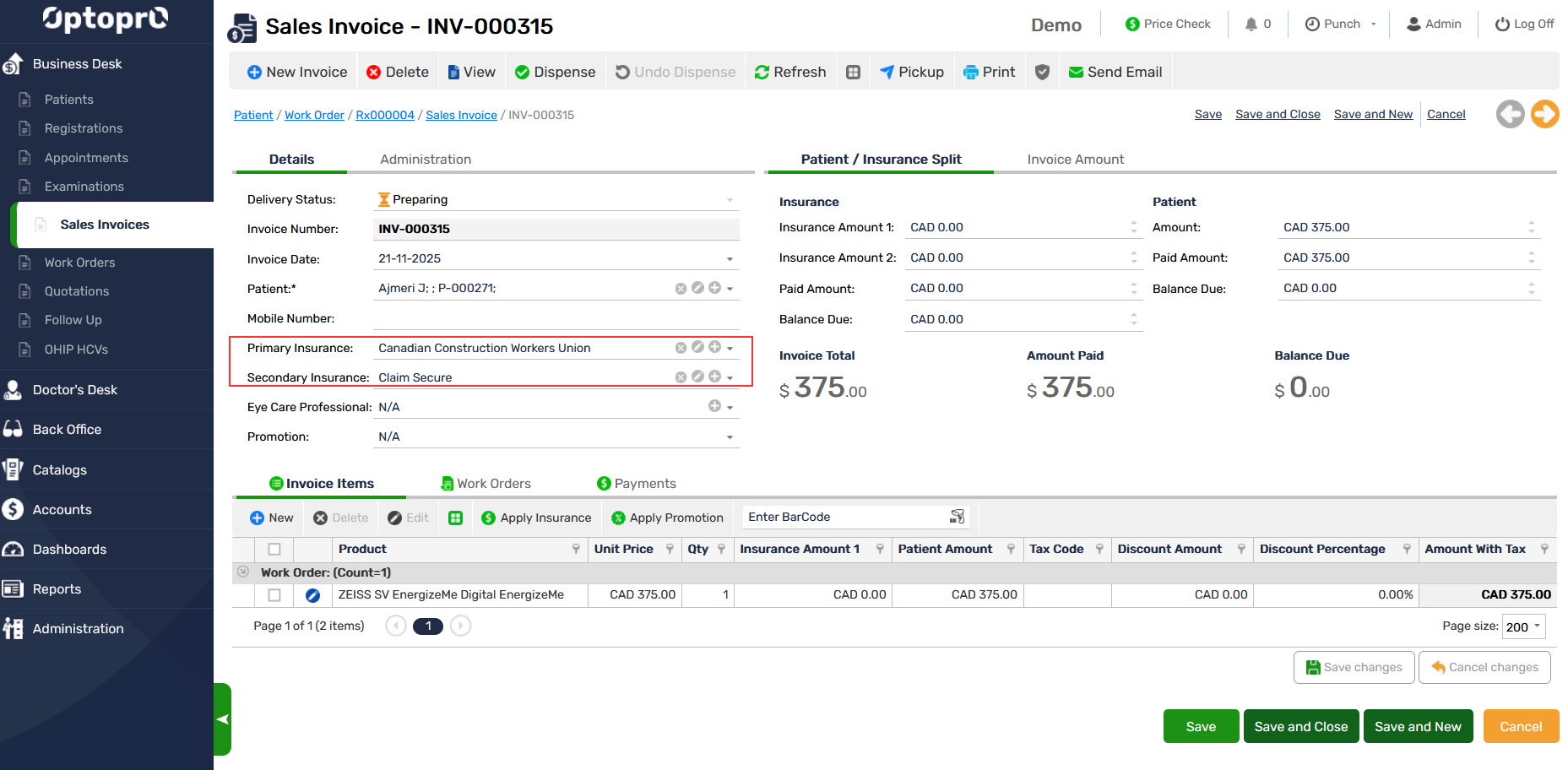
To add Insurance providers to sales invoice of a patient, enter the details of the providers for primary/secondary insurance.
You can either select the insurance providers from the drop-down list to pick the providers or you may add a new insurance provider to the list by clicking on the “+”
Apply Insurance to Sales Invoice
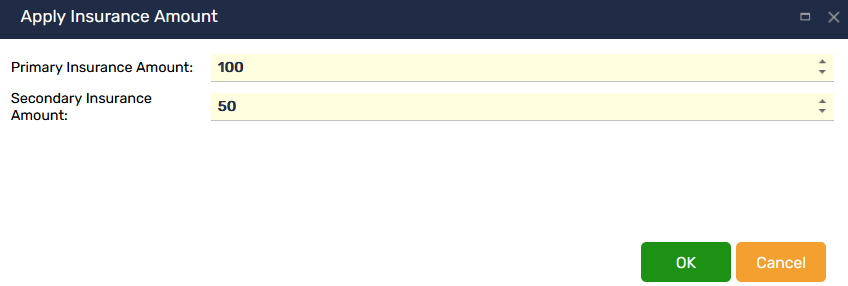
You can apply insurance amount to the invoice payment by clicking on the option “Apply Insurance” on the pane. The following window appears where you can add the amount of insurance you can avail from each of the providers
Add Insurance amount to payments
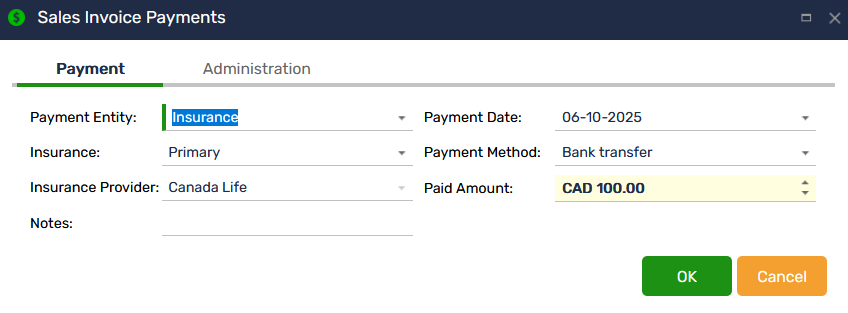
Once the insurance amount is applied, you can make payments by clicking on the payments option and select payment entity as “Insurance”