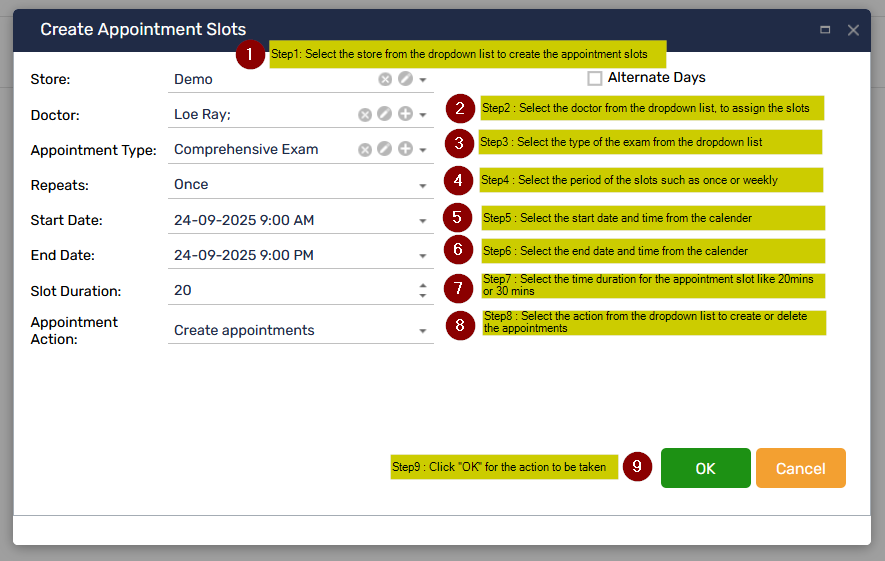
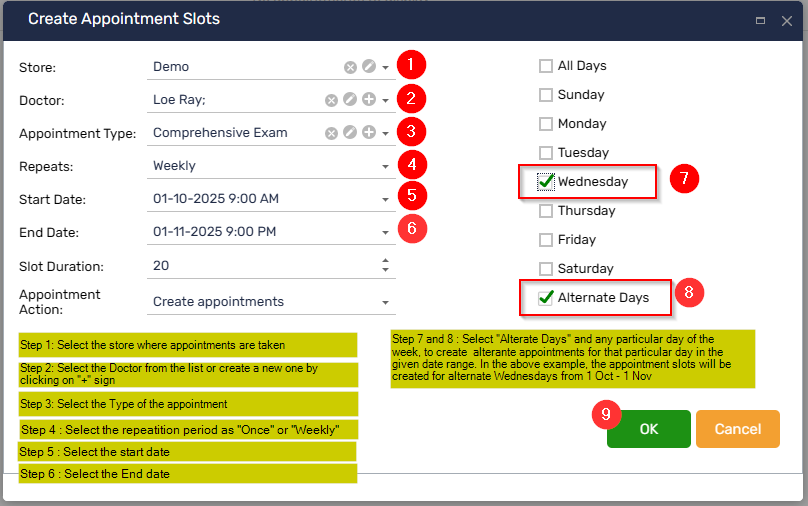
Appointment Slots
Key functions of Slot Management
 Dynamic Slot Allocation
It allocates slots based on the type of appointment, the estimated time required for different procedures (e.g., routine eye check-up vs. a detailed consultation for a specific condition), and the availability of resources.
Customizable Time Slots
It allows clinics to customize the duration of different appointment types. For example, a new patient consultation might require a longer slot than a follow-up visit. This customization ensures that each appointment type is allocated an appropriate amount of time, reducing overruns and delays.
Real-time Availability Updates
It updates slot availability in real-time as appointments are booked, rescheduled, or canceled. This feature helps in maximizing the utilization of available slots and reduces the chances of double-booking. Doctor and Resource Scheduling: It integrates the schedules of ophthalmologists. This ensures that appointments are only scheduled when both the required personnel and resources are available.
Overbooking & Buffer Management
It controls overbooking to account for no-shows and last-minute cancellations.
Priority Scheduling
It enables the prioritization of appointments based on urgency, such as allocating slots for emergency cases or prioritizing surgeries over routine check-ups when scheduling resources.
Block Scheduling
It allows blocks of time to be reserved for specific types of appointments or procedures. This can help in managing the workload and ensuring that sufficient time is allocated for more complex or time-consuming procedures.
Multi-location Support
For practices operating in multiple locations, it helps to manage slots across different sites, allowing patients to book appointments at their preferred location based on slot availability.
Patient Preferences
It accommodates patient preferences for specific time slots or doctors, enhancing the patient experience and satisfaction with the service provided.