-
Updates
-
Patients
-
Appointments
-
Examinations
-
Sales
-
Inventory
-
Promotions
-
Catalogs
-
Dashboards
-
Integrations
-
System
-
Resources
Inventory Adjustment
The Inventory Adjustment in Optopro is designed to accurately correct inventory quantities when changes occur outside of standard operational workflows such as Goods Receipt, Goods Return, or Sales transactions.
Inventory Adjustment is used to manually increase or decrease inventory quantities in exceptional situations where items were not updated through regular processes.
For instance:
Damaged, broken, or unusable frames removed from inventory
Missing items identified during stock verification
Additional stock discovered that was physically present but not recorded in the system
Corrections after inventory audits or stock counts
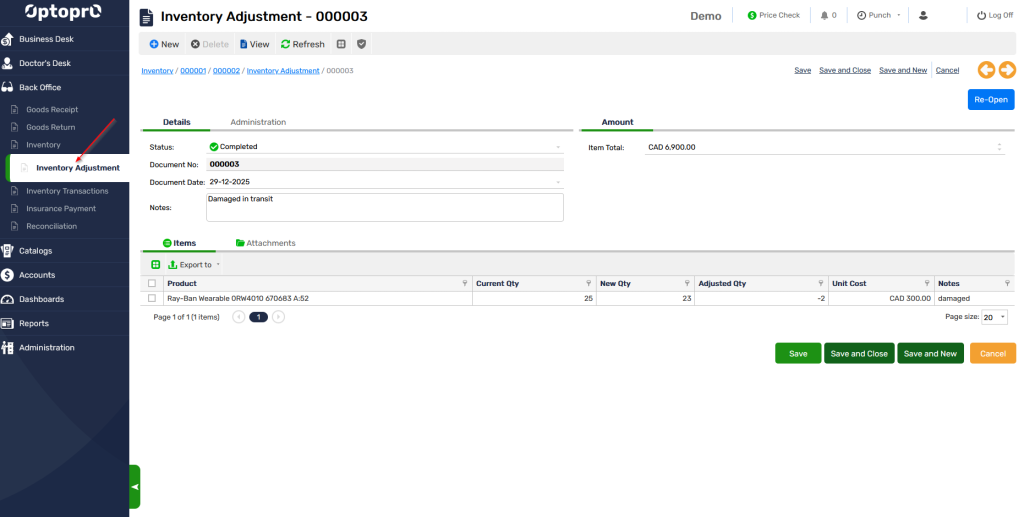
Common Scenarios
Stock Reduction (Negative Adjustment)
Use Inventory Adjustment to reduce inventory when:
- Frames are damaged during handling or display
- Items are lost, stolen, or no longer saleable
- Products are written off after internal review
Example:
2 damaged frames are removed from inventory to reflect actual stock.
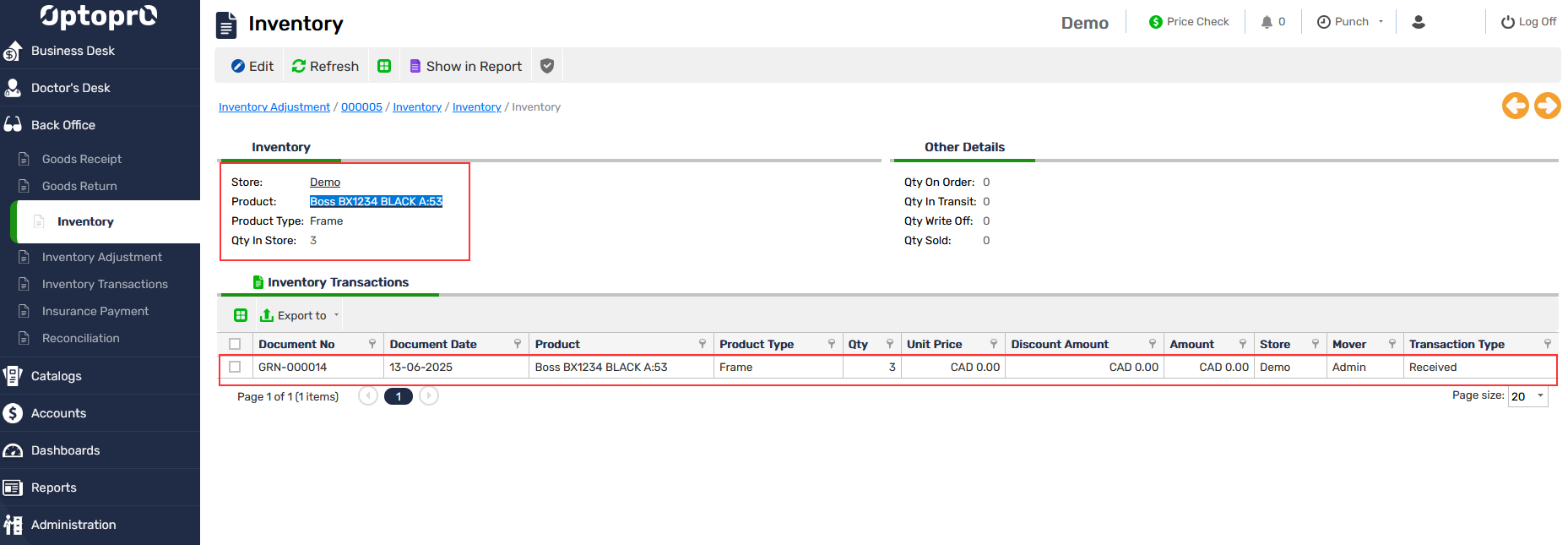
Step1: Let us select a frame for eg. Boss BX1234 BLACK A:53 from the Inventory
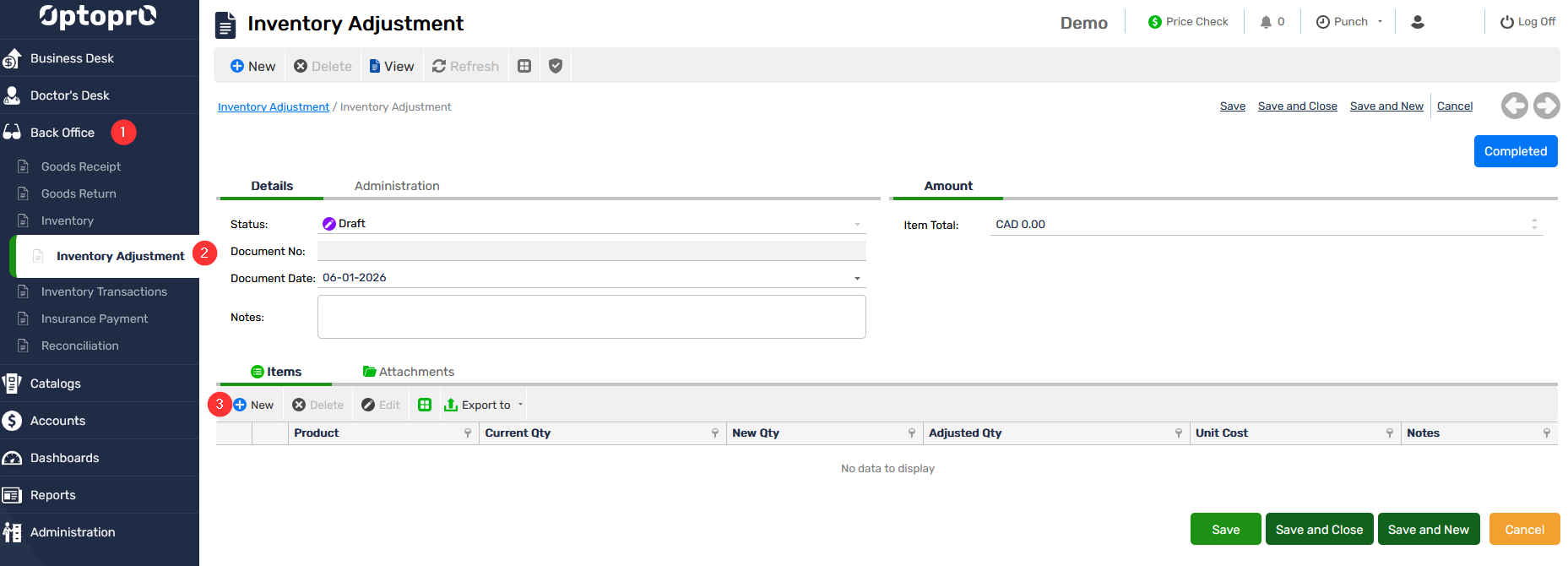
Step 2: For a situation where we found 2 damaged/broken frames and need to adjust the inventory, goto Inventory adjustment and click “New” to add these items for adjustment
Step 3: Select the item for which the adjustment has to made. You can copy and paste the name of the product or select the item from the list
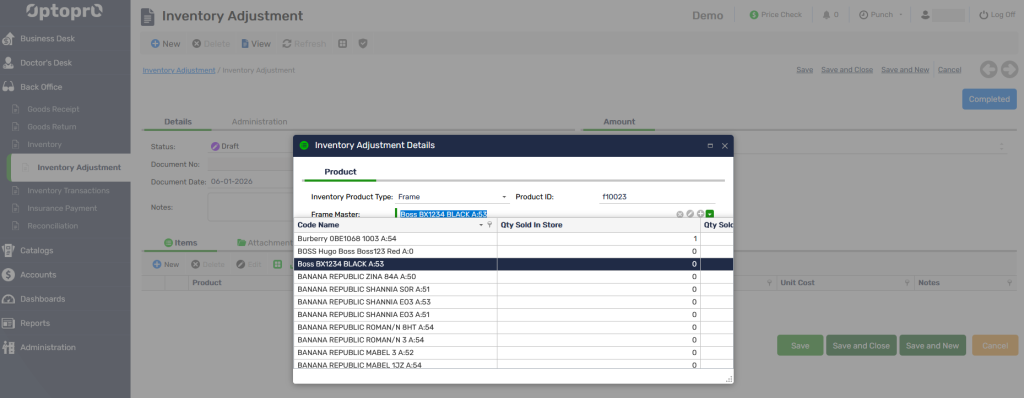
Once item is selected, a pop window will appear with current details of the quantity, amount and unit price.

Step 4: You can now edit the Current quantity as two frames were damaged and mention the description in the Notes section. This will change the New quantity to 1 from current quantity of 3 as 2 frames were adjusted for being removed as damaged/broken.
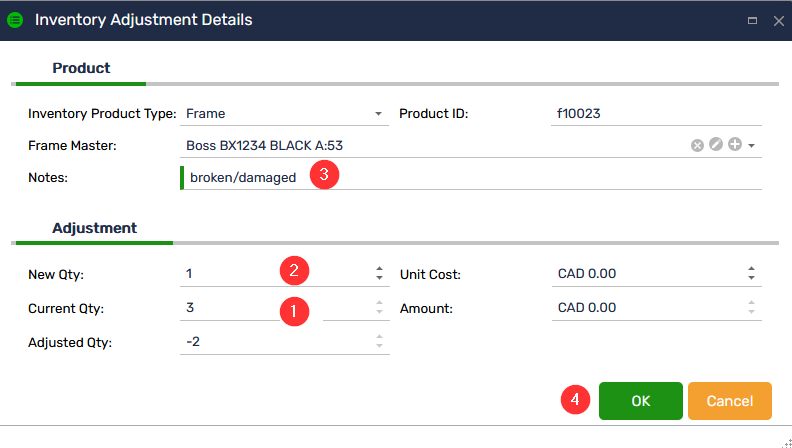
Now this adjusted item is added to the list of the inventory adjustment items. You can now select this item and click on the “Complete” button to complete the adjustment cycle and once saved the necessary adjustments are reflected on the inventory of this item.
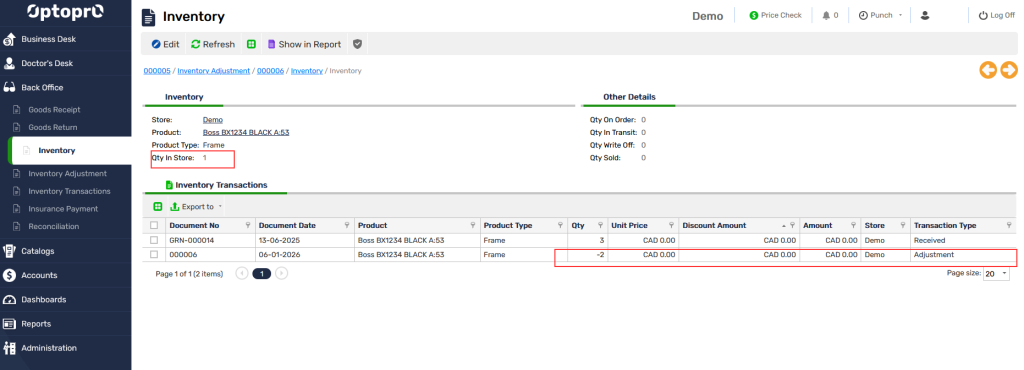
The quantity has now changed from 3 to 1. You can differentiate the inventory by the Transaction Type “Adjustment” in case any adjustments were made to the existing inventory.
Stock Increase (Positive Adjustment)
Use Inventory Adjustment to increase inventory when:
Frames are found in storage or drawers but were never recorded
Counting errors are identified during physical stock checks
Inventory discrepancies are corrected after audits
Example:
3 frames are discovered in a drawer and added to inventory.
Step 1: Let us select a frame for eg. Christian Dior 4567 Black A:0 from the Inventory
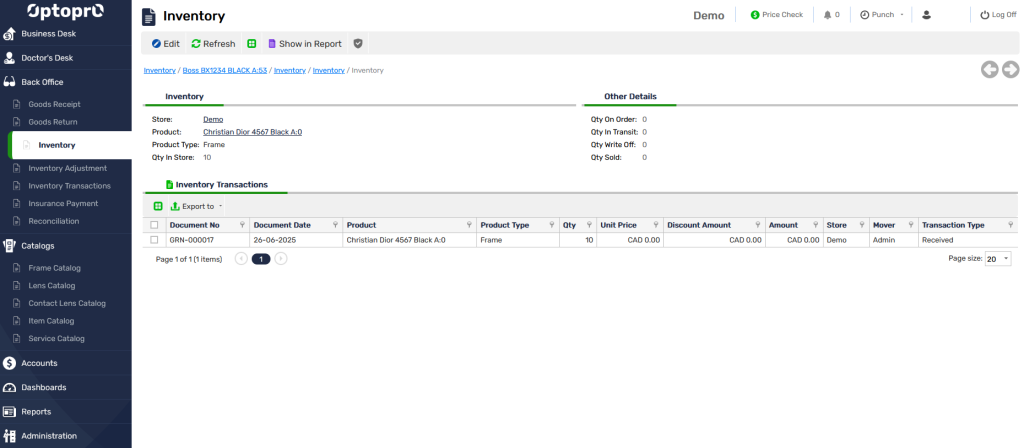
The Quantity for this frame is shown as 10 in store.
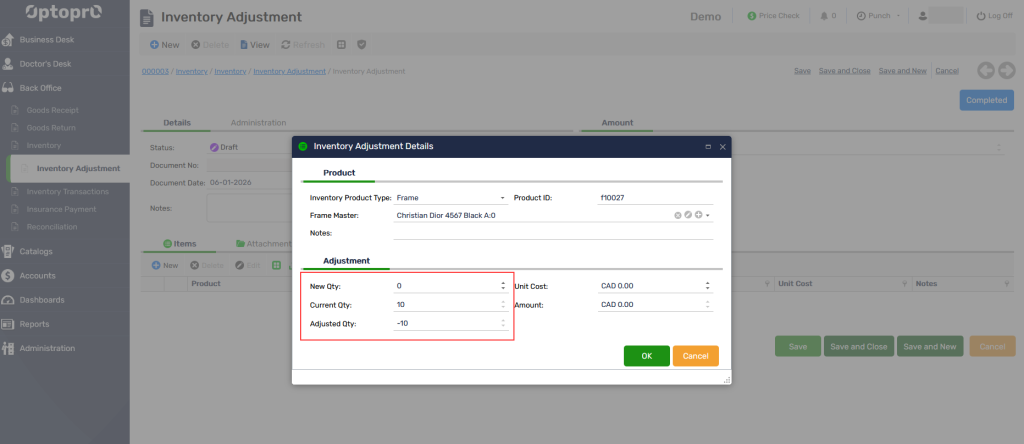
Step 2: Lets suppose we found 3 of these frames that were being misplaced/unknown. You can add these found items in your present inventory of this item.
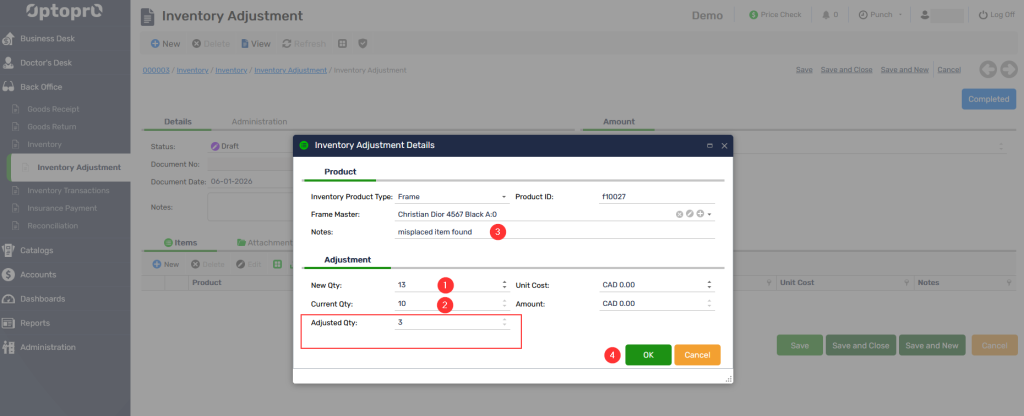
Step 3: Now the new quantity has changed to 13 from 10 as 3 were added later to the current inventory
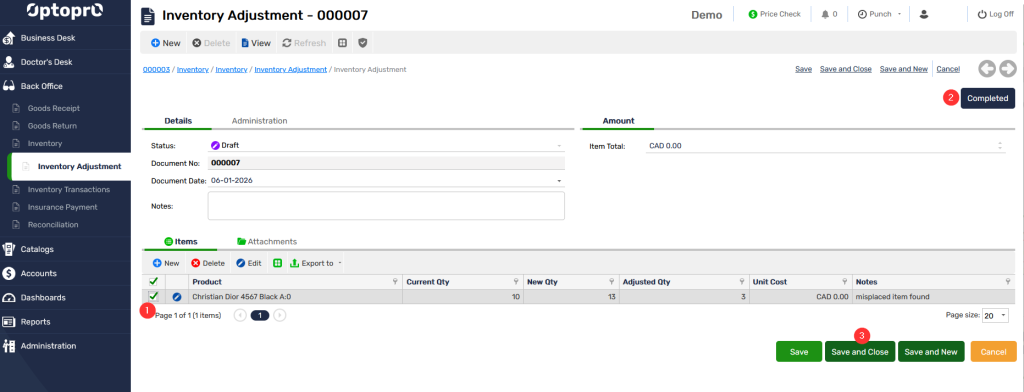
Step 4: Once the adjustments are set, select the item from the list of Inventory adjustment and click on the “Complete” button to reflect these changes in the Inventory for this item.

Now the new adjusted quantity of 13 items is displayed instead of the previous quantity 10