Follow-up
Key functions of Follow-up
 Automated Follow-Ups
Optopro automatically creates follow-up reminders based on events such as:
-
- Exam recalls and next appointments
- Ready-for-pickup eyewear or contact lenses
- Outstanding patient balances
- Pending insurance payments
- Incomplete prescriptions or examinations
- Unscheduled follow-up visits
- Warranty or service reminders
- Overdue patient pickups or order delays
This automation minimizes manual tracking and ensures consistency.
Manual Follow-Up Creation
Staff can create custom follow-up tasks for personalized or specific situations, including:
-
- Patient inquiries
- Special order requests
- Lab delays
- Product availability updates
- Service or adjustment reminders
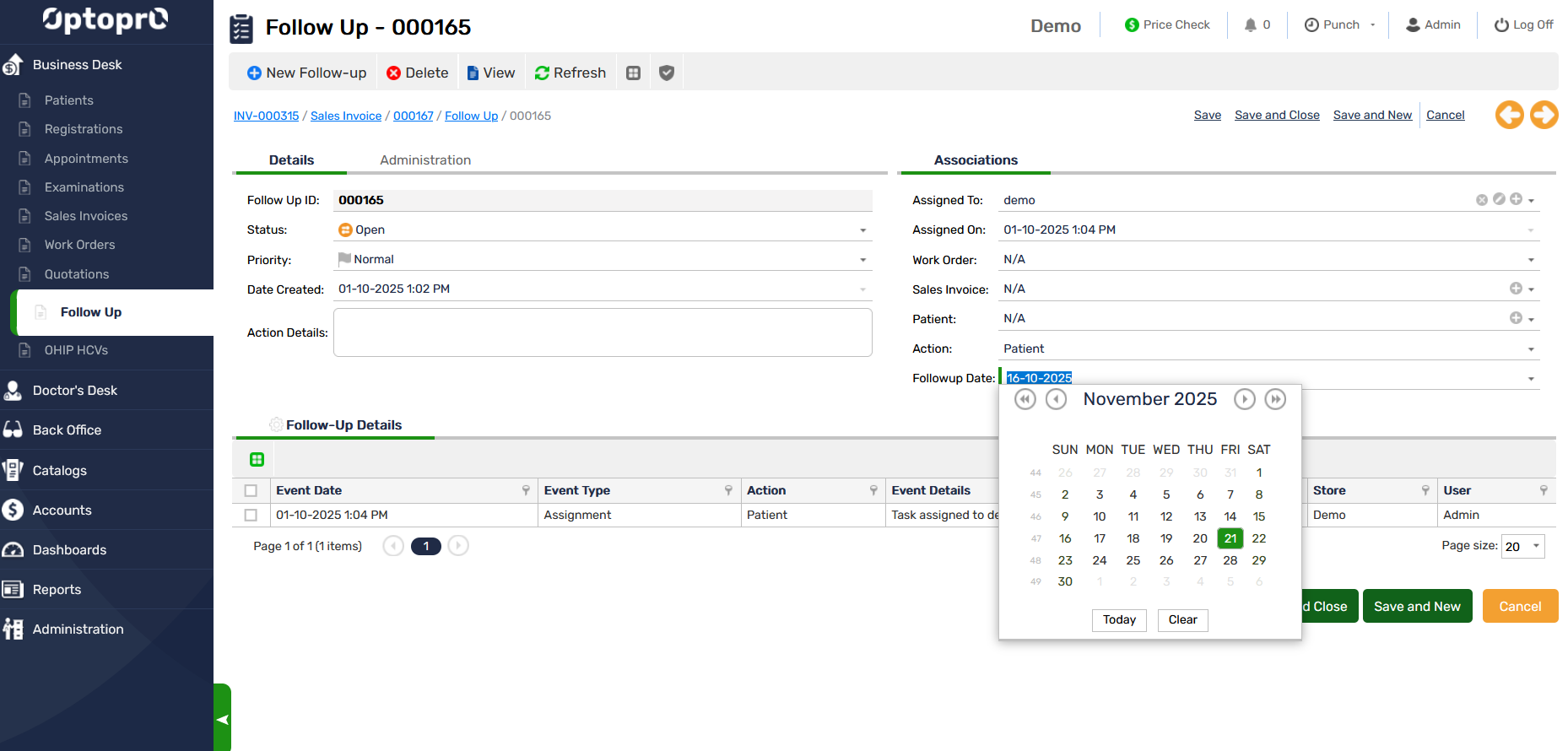
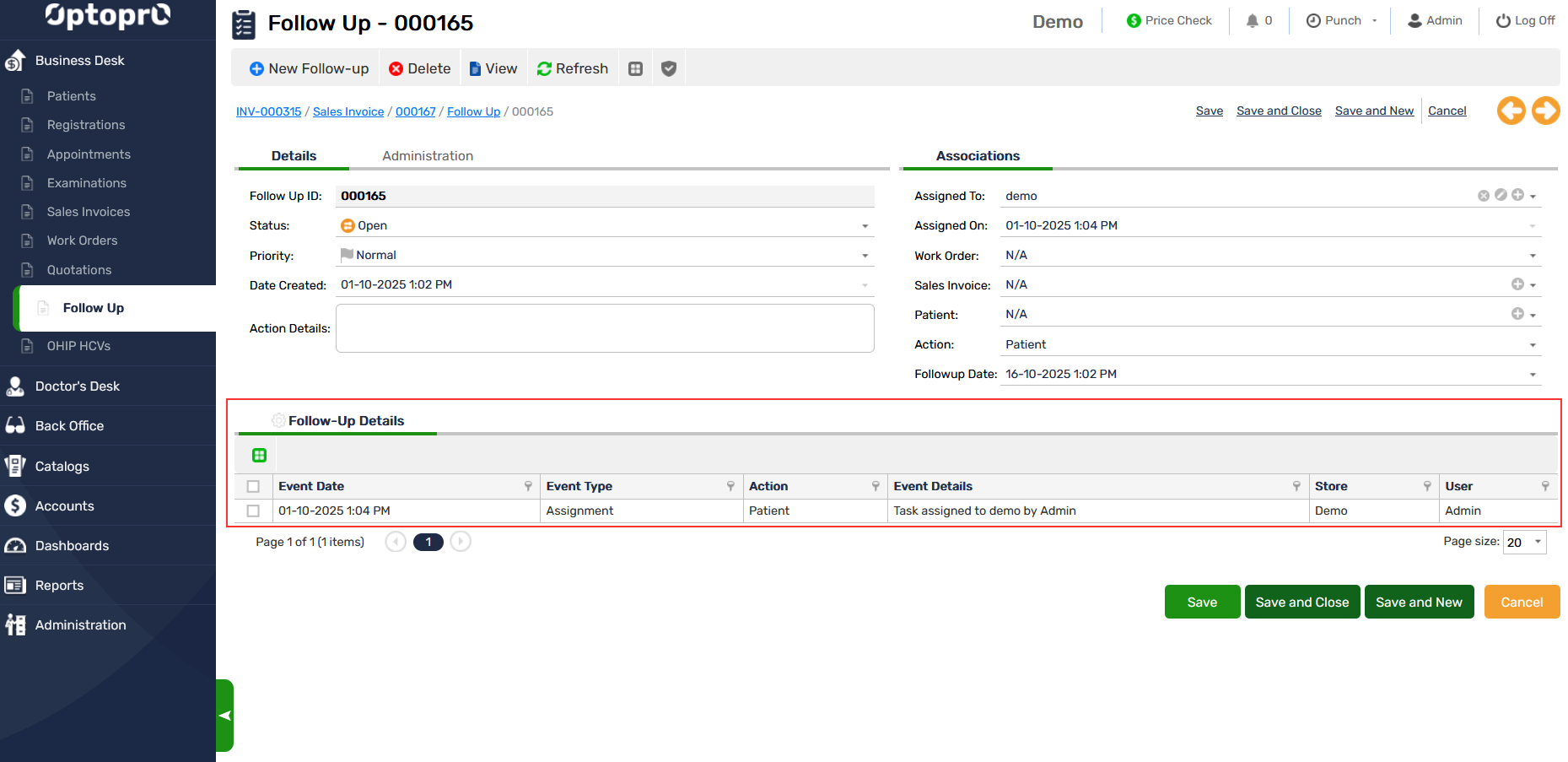
Each follow-up can include instructions, due dates, status, and assigned staff member.
Follow-Up Dashboard
The Follow-Up Dashboard provides a detailed, real-time view of all pending and completed follow-ups.
You can filter follow-ups by:
-
- Date
- Staff member
- Patient
- Follow-up type
- Status (Pending, Completed, Overdue)
- Priority level
This dashboard ensures no task is missed and supports team coordination.
Smart Categories for Easy Navigation
Follow-ups are organized into meaningful categories to streamline workflow, including:
-
- Pickups – Eyeglasses or contact lenses ready for collection
- Financial – Pending payments, insurance follow-ups, outstanding balances
- Clinical – Upcoming check-ups, post-exam reminders, medical advisories
- Operational – Internal tasks, lab communication, and order progress
- Custom – Personalized reminders created by staff
These categories help staff quickly locate the follow-ups they need to act on.
Status Tracking
Every follow-up includes a status indicator to show progress:
-
- Pending – Follow-up is scheduled and awaiting action
- In Progress – Staff have begun addressing the task
- Completed – Follow-up successfully resolved
- Overdue – Deadline has passed and requires urgent attention
This transparent structure improves accountability and task management.
Integrated Patient Records
Each follow-up is directly linked to the patient profile, allowing staff to view:
-
- Patient contact information
- Related invoices or orders
- Examination history
- Notes and previous follow-ups
This ensures staff have full context when contacting patients.
Notifications & Reminders
Optopro enables timely notifications for:
-
- Follow-ups nearing their due date
- Overdue tasks
- High-priority reminders
The feature ensures staff stay organized and patient communications remain consistent and timely.
Staff Assignment
Each follow-up can be assigned to a specific team member, improving clarity and workload distribution.
Managers can track:
-
- Staff performance
- Follow-up completion rates
- Pending workload per team member
Notes & Documentation
Add detailed notes to any follow-up, such as:
-
- Attempted calls
- Emails sent
- Patient responses
- Special instructions
- Updates from labs or insurance providers
This creates a full audit trail for future reference.
Use Cases
Clinical Follow-Ups
-
- Annual eye exam recalls
- Post-treatment or medical monitoring
- Prescription update reminders
Sales & Operational Follow-Ups
-
- Glasses or contact lens pickups
- Warranty reminders
- Special order updates
- Product availability notifications
- Follow-ups for abandoned shopping carts or missed consultations
Financial Follow-Ups
-
- Outstanding patient balances
- Pending insurance reimbursements
- Claim status follow-ups
Thus, the Follow-Up in Optopro is designed to help clinics deliver outstanding patient service while staying organized and efficient. By combining automated reminders, real-time tracking, and comprehensive dashboard tools, Optopro ensures that every patient interaction is accounted for—resulting in improved workflow management, increased revenue opportunities, and higher patient satisfaction.