< All Topics
Print

Appointments

Appointment section is designed to streamline and manage the scheduling of patient visits to ophthalmologists/eye-care clinics. It offers various viewing options, such as daily, weekly, or monthly calendars, to help staff manage the schedule effectively.

Key functions of Appointment

Online Appointment Booking offers an online portal or mobile app that allows patients to book their appointments directly, choose their preferred doctor, and even select the type of consultation they need.

 Appointment Scheduling

allows the receptionist or medical staff to book, reschedule, or cancel appointments.

 Patient Registration

integrates patient registration at the time of appointment scheduling. New patients can provide their personal details, medical history, and other relevant information before their visit.

 Appointment Types

enables the categorization of appointments based on the type of service needed, such as routine eye exams, consultations for specific eye conditions, surgeries, or follow-up visits.

 Doctor Schedule

It displays the availability of different ophthalmologists, allowing appointments to be scheduled based on their availability.

 Reminders and Notifications

It sends automated reminders to patients via SMS & Emails about their upcoming appointments.
New Appointment Workflow

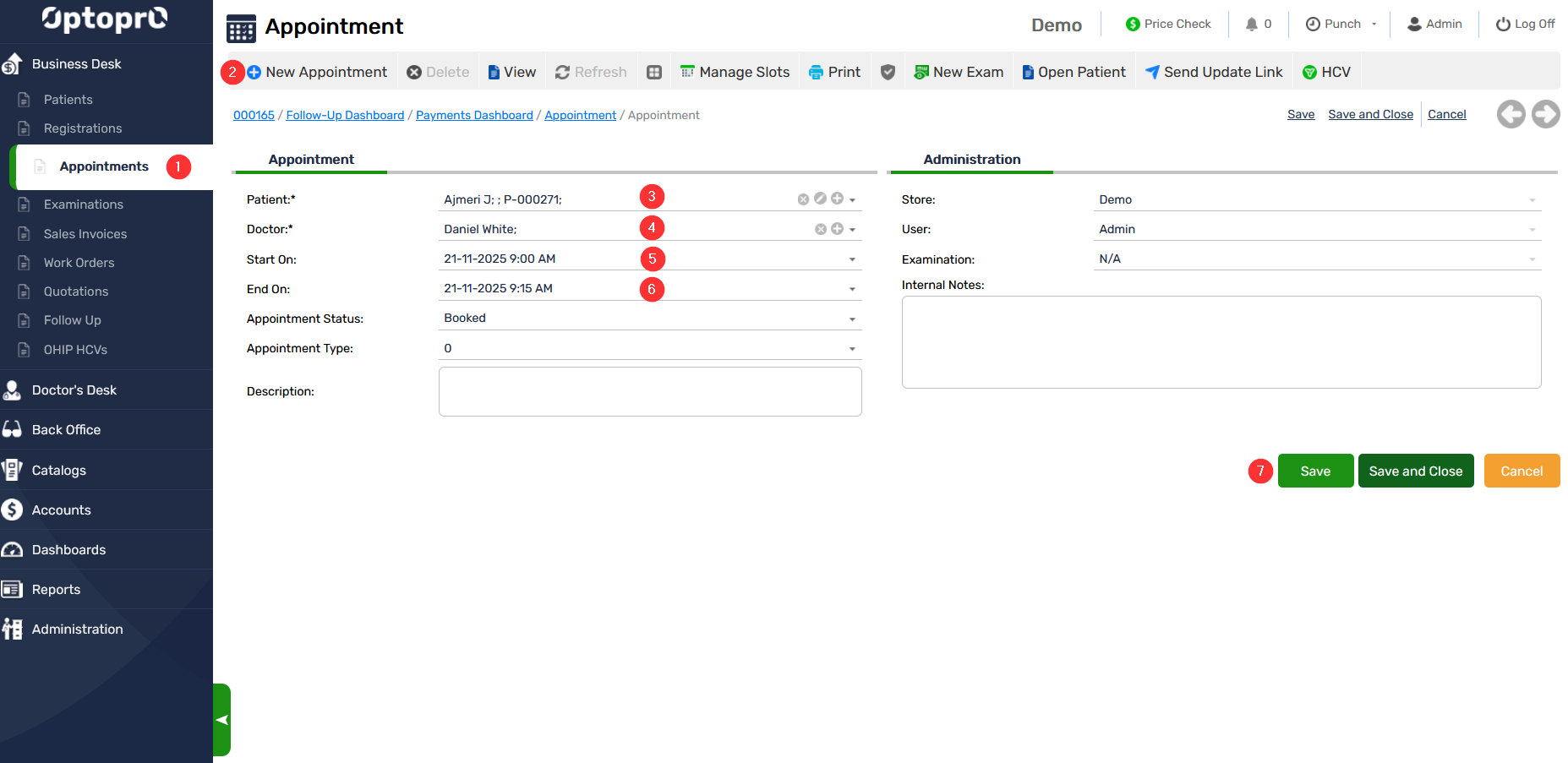
Follow the steps in the image above to book appointment for the patient.

Step 1: On the left panel click “Appointments”

Step 2: Click on “New Appointment”

Step 3: Type the patient name or select from the list

Step 4: Select the doctor from the existing doctors in drop-down list or you can add a new doctor by clicking on the “+”. Refer Add a new doctor

Step 5: Select the start date and time from the calendar

Step 6: Select the end date and time from the calendar

Step 7: Click “Save” to save the appointment

All fields marked with “ * ” are mandatory and cannot be left empty

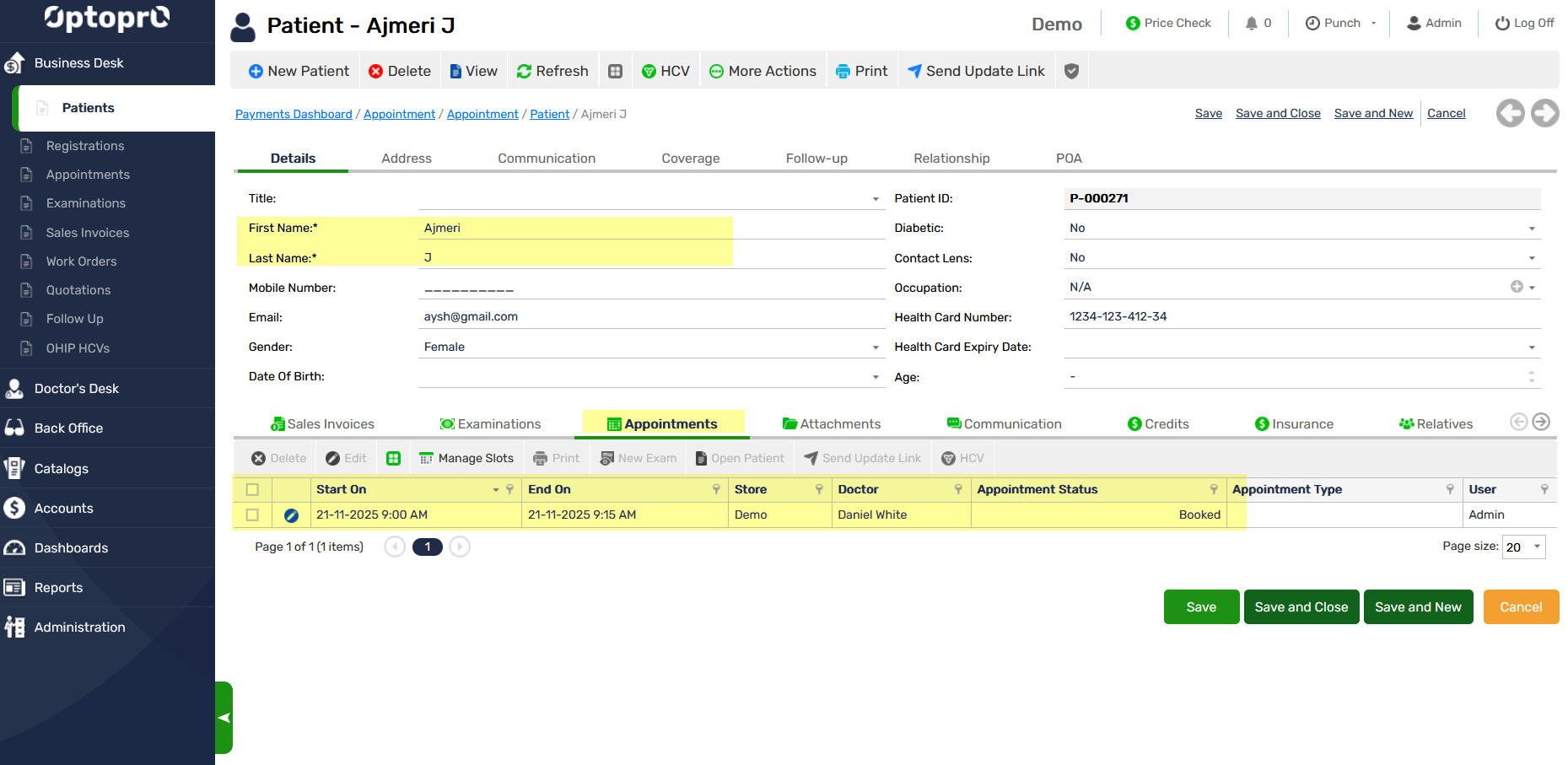
Once the appointment is booked, you can view it under the “Appointments” tab in patient’s profile as shown below

Key functions of Slot Management

 Dynamic Slot Allocation

It allocates slots based on the type of appointment, the estimated time required for different procedures (e.g., routine eye check-up vs. a detailed consultation for a specific condition), and the availability of resources.

 Customizable Time Slots

It allows clinics to customize the duration of different appointment types. For example, a new patient consultation might require a longer slot than a follow-up visit. This customization ensures that each appointment type is allocated an appropriate amount of time, reducing overruns and delays.

Real-time Availability Updates

It updates slot availability in real-time as appointments are booked, rescheduled, or canceled. This feature helps in maximizing the utilization of available slots and reduces the chances of double-booking. Doctor and Resource Scheduling: It integrates the schedules of ophthalmologists. This ensures that appointments are only scheduled when both the required personnel and resources are available.

Overbooking & Buffer Management

It controls overbooking to account for no-shows and last-minute cancellations.

Priority Scheduling

It enables the prioritization of appointments based on urgency, such as allocating slots for emergency cases or prioritizing surgeries over routine check-ups when scheduling resources.

Block Scheduling

It allows blocks of time to be reserved for specific types of appointments or procedures. This can help in managing the workload and ensuring that sufficient time is allocated for more complex or time-consuming procedures.

Multi-location Support

For practices operating in multiple locations, it helps to manage slots across different sites, allowing patients to book appointments at their preferred location based on slot availability.

Patient Preferences

It accommodates patient preferences for specific time slots or doctors, enhancing the patient experience and satisfaction with the service provided.

New Slots Workflow

Step 1: Select the store from the drop-down list, to book the appointment for the respective store.

Step 2: Select the doctor from the existing doctors in drop-down list or you can add a new doctor by clicking on the “+”. Refer Add a new doctor

Step 3: Select the Type of appointment from the drop-down list

Step 4: Select the period of the slots, for e.g. once or weekly. You can also opt to create the slots for alternate days by checking the box for “Alternate Days”

Step 5: Select the start date and time from the calendar

Step 6: Select the end date and time from the calendar

Step 7: Enter the duration of the slot      

Step 8: Select the action from the drop-down list i.e. to create or delete the appointments

Step 9: Click “OK”

Slots are ready for booking the appointments for the patients.

Weekly Slots Workflow

Follow the steps below to create weekly slots for appointment (alternate days)

Step 1: Select the store from the drop-down list, to book the appointment for the respective store.

Step 2: Select the doctor from the existing doctors in drop-down list or you can add a new doctor by clicking on the “+”. Refer Add a new doctor

Step 3: Select the Type of appointment from the drop-down list

Step 4: Select the period of the slots as weekly. To create the slots for alternate days, check the box for “Alternate Days”

Step 5: Select the start date and time from the calendar

Step 6: Select the end date and time from the calendar

Step 7&8: Check the box for Alternate days along with the day of the week 

Step 9: Click “OK”

Slots are ready for booking the weekly appointments for alternate days.

Table of Contents