Work Orders
Key Features
 Centralized Work-order Creation
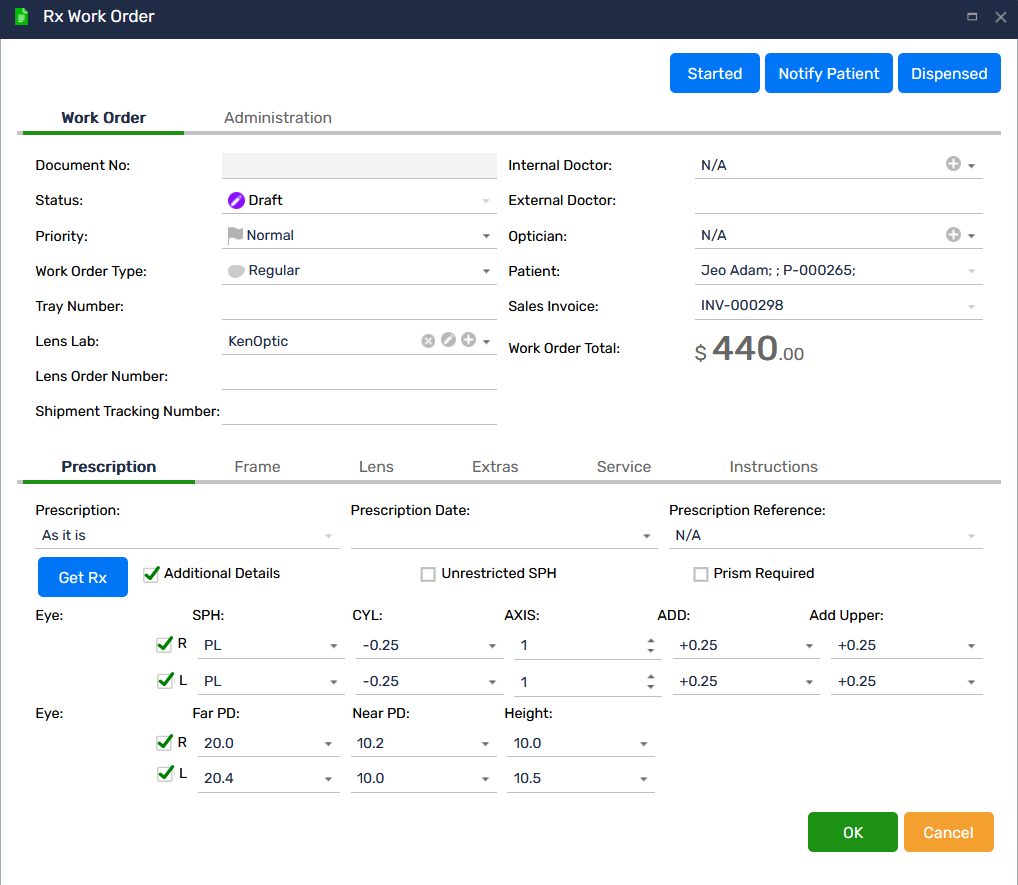
Generate detailed work-orders directly from the sales invoice or patient prescription. Each work-order captures all required specifications, including:
-
- Frame details (model, color, size)
- Lens prescriptions (SPH, CYL, AXIS, ADD, PD, etc.)
- Lens type and material
- Coatings and add-ons
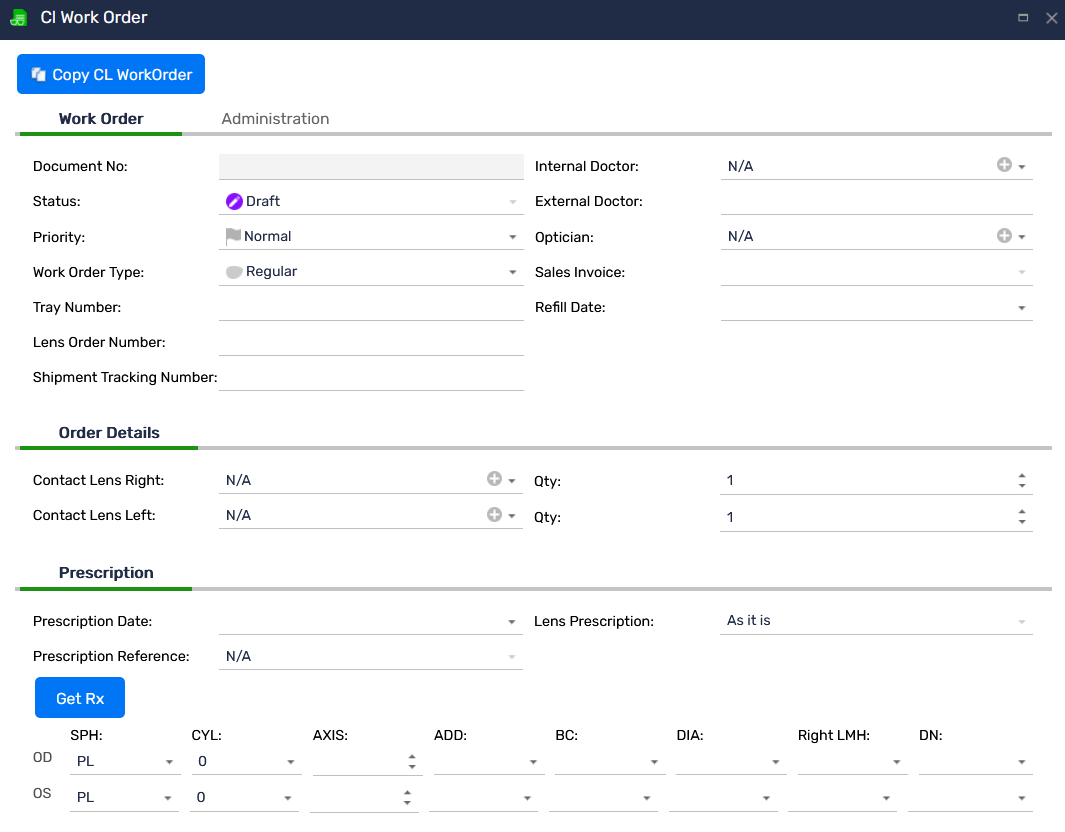
- Contact lens brand, power, base curve, and quantity
- Extra fittings (nose-pad adjustments, frame alignment, tinting, etc.)
- Additional services (repairs, custom adjustments, re-edging, etc.)
- Special instructions for lab or in-house technicians
Prescription & Contact Lens Work-orders
Optopro supports both Prescription Work-orders and Contact Lens Work-orders, allowing staff to manage all optical product categories efficiently:
-
- Prescription eyewear orders for single vision, bifocal, trifocal, and progressive lenses
- Contact lens orders based on prescription or manufacturer recommendations
- Mixed orders for frames and contact lenses within the same patient profile
Real-Time Work-order Tracking
Stay updated at every stage of the workflow. Each work-order includes a clear status to indicate the next required action:
-
- Created – Work-order is generated and pending processing
- Started – Technician has begun working on the order
- In Progress – Product is under processing or with the lab
- Notify Patient – Patient should be informed about updates or required action
- Ready for Pickup – Order is complete and ready for collection
- Dispensed – Patient has collected their eyewear or lenses
These statuses enhance coordination between front-desk staff, technicians, and management.
Action Alerts & Notifications
Optopro highlights pending tasks and actions needed, helping prevent delays or missed updates. Staff can quickly identify:
-
- Orders awaiting technician attention
- Work-orders requiring patient notification
- Orders ready for dispensing
- Items pending pickup
Complete Order Details at a Glance
Each work-order includes:
-
- Patient information
- Associated invoice
- Prescription details
- Lab/technician notes
- Expected completion date
- Status history and comments
This ensures that technicians and administrators always have the full context before proceeding.
Print Individual or Batch Work-orders
Choose between:
-
- Printing a single work-order for a specific patient order
- Printing all work-orders at once for the day, shift, or selected category
This flexibility supports efficient lab operations and reduces administrative time.